Friday, 26 December 2014

How to Use Computer as Wifi Router


Making laptop WIFI hotspot is very good Idea if you want to share you internet connection to your friends mobile and laptop. Today I going to share the trick to make laptop WIFI hotspot, it’s quite easy and no need any technical knowledge because we will use software.
Follow these Steps to Make Laptop WIFI Router:
Follow below steps and make your laptop WIFI hotspot in some simple steps
1)      First of all download VirtualRouterInstaller.msi. from here
2)      Install the software carefully in your laptop.
3)      Now setup the Name and password for your WIFI hotspot.
4)      Now, it’s read to use. Connect any PC or mobile and enter password then start browsing.

The above method is very simple and anyone can use this software for WIFI Hotspot. Now you can easily make your laptop WIFI hotspot.
I used this software from above link and you can Google also for this software and please be sure you have a good antivirus. I will not responsible for any kind of problems on your computer.
Finally I want to say this software is awesome you should also use this software on your laptop and connect more laptop with WIFI hotspot. I hope this tricks will help you to make WIFI Hotspot Laptop.

Must Share it your friends and enjoy it.

How to Invisible Facebook Profile Name

Hello world ! 

Today i'm gonna show that how you can invisible/ hide your facebook profile name. if you want too simply just follow these steps if you did not understand then watch this video that given bellow here.


Steps to Make nameless or Invisible Facebook Profile name:
1)      First of all open Mozilla Firefox
2)      Click on Tools >> Options >> Advanced >> Settings….
3)      Now click on Manual proxy Configuration >> HTTP Proxy
4)      Paste 119.252.160.34 or 118.98.35.251 in HTTP Proxy
5)      Paste 8080 in Port.
6)      Click OK and OK
7)      Now open your Facebook account >> Account Setting
8)      Scroll down and change the language from English (US) to Bahasa Indonesia
9)      Change your name to RﱞﱞﱞﱞﱞﱞﱞﱞﱞﱞﱞﱞM you need to copy this code from here and paste it.
10)   Now Remove the Letter R and M then enter your password and click to Save.


I hope this tutorial will help you to make a nameless Facebook profile name. For more tips and tricks you can subscribe our blog or like us on Facebook. Have a Nice and tricky Day 

Thursday, 25 December 2014

How to make Single Name of Facebook Account

How to make Singal Name of Facebook Account

Hello world ! 

Today i'm gonna shoe that how you can write first name / single name or hide last name of your facebook account. if you want too simply just follow these steps if you did not understand then watch this video that given here.

How to make Singal Name of Facebook Account


Steps to Make Single Name on Facebook account:
1)      Open Mozilla Firefox
2)      Click on Tools >> Options >> Advanced >> Settings….
3)      Now click on Manual proxy Configuration >> HTTP Proxy
4)      Paste 118.98.35.251 or 119.252.160.34 in HTTP Proxy
5)      Paste 8080 in Port.
6)      Click OK and OK
7)      Now open your Facebook account >> Account Setting
8)      Scroll down and change the language from English (US) to Bahasa Indonesia
9)      Now remove your Last name easily and save it.
10)   After completing all above steps select your system proxy and chance your Facebook language back to English (US)
If above Proxy is not working then try below proxies
Porxy
  • 202.43.188.143
  • 118.98.35.251 
  • 36.76.182.173
  • 61.247.45.35
  • 180.250.169.14
  • 180.250.82.188
  • 119.252.160.34
  • 219.83.100.195
  • 110.139.125.230
  • 202.87.254.156
I hope you will enjoy this trick and this post will very helpful for you to make single name Facebook account. For more tricks and tips subscribe our blog or Like us on Facebook. Have a nice and tricky Day Enjoy.

For Video Tutorial watch this video.

Make Single Name of Facebook Account in Pakistan or Any Country


enjoy it and share with your friends.

Wednesday, 24 December 2014

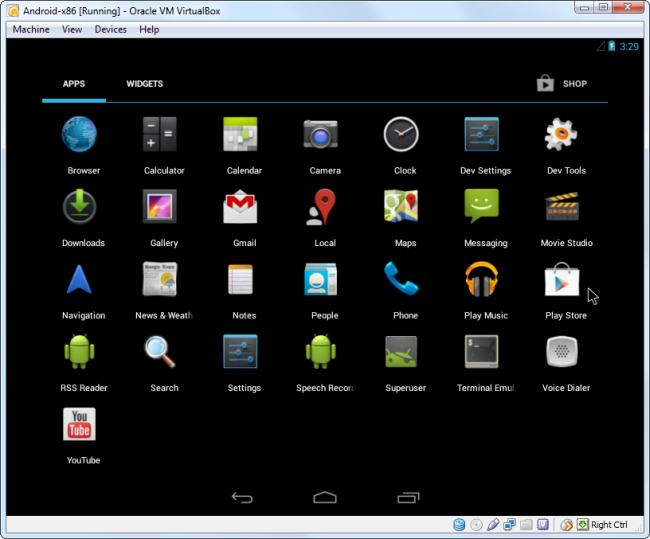
How to install Andriod 4.4 OS in Windows

Hello Friends !
in this post i will teach you how to install and run Android-x86 in windows by use of VMware Player

First, download an iso image of Android-x86. from here :  Click Here
and download VMWare Player frome here :  Click Here


  1. after download simply install vmware player in your computer and run it.
  2. Create a new virtual machine template on VMware Player. Choose "Use ISO image" option to use the downloaded iso file. Set disk image size to 2 GB. Memory will automatically be set to 256 MB. Before finalizing the New Virtual Machine Wizard, uncheck "Automatically power on this virtual machine after creation" since there is one thing to do before powering on the VM.
  3. Power on the VM. Once VM boots up, you will see the following screen. Choose "Install 
  4. Next you will see "Choose Partition" window. Click on "Create/Modify partitions" menu. This will lead you to a disk partition editor menu. Use the arrow key to choose [New] to create a new partition.
  5. Then choose [Primary] to create a new primary partition. Accept the default to set it to maximum size, and hit Enter. Use the arrow key to choose [Bootable] and add the “Boot” flag to the partition. Select [Write] to confirm the partitioning, and quite the partition editor menu.
    You are back to the “Choose Partition” window. You should now see an additional option to install Android on "sda1 Linux". Choose this option and proceed.
  6. Select "ext3" in the "Choose filesystem" menu. Confirm when asked if you want to format the drive. Confirm again when it asks you to install the GRUB boot loader. When asked whether to install /system as read-write, choose "Yes". This is because you will need to modify /system after installation. In general, mounting /system as read-write makes it easier to debug, at the cost of more disk space and longer installation time. If you are asked to create an SD card, go ahead and create one.

    The installation will now proceed. At the end of installation, you will see the following screen. Go ahead and reboot Android VM. 

  7. After Android VM finishes booting up, you will see the following screen. At this point, network is not properly set up. So skip Google signup process. 
  8. End you You have installed android os in your computer successfully if you are facing any problem then just leave here your comment we are here to solve your problems and don't forget to share with your friends. Thanks !

For Complete video Tutorial Watch this video.

How to install Andriod 4.4 OS in Windows


    Don't forget to share with your friends and must follow us by email.

    Android OS for Windows free Download [Latest 4.4]

    Android is a mobile operating system (OS) based on the Linux kernel and currently developed by Google. With a user interface based on direct manipulation, Android is designed primarily for touchscreen mobile devices such as smartphones and tablet computers, with specialized user interfaces for televisions , cars (Android Auto), and wrist watches (Android Wear). The OS uses touch inputs that loosely correspond to real-world actions, like swiping, tapping, pinching, and reverse pinching to manipulate on-screen objects, and a virtual
    keyboard. Despite being primarily designed for touchscreen input, it also has been used in game consoles, digital cameras, regular PCs  and other electronics.

    Android is the most widely used mobile OS and, as of 2013, the highest selling OS overall. Android devices sell more than Windows, iOS, and Mac OS X devices combined, with sales in 2012, 2013 and 2014 close to the installed base of all PCs. As of July 2013 the Google Play store has had over 1 million Android apps published, and over 50 billion apps downloaded. A developer survey conducted in April–May 2013 found that 71% of mobile developers develop for Android. At Google I/O 2014, the company revealed that there were over 1 billion active monthly Android users, up from 538 million in June 2013.

    Android's source code is released by Google under open source licenses, although most Android devices ultimately ship with a combination of open source and proprietary software.[3] Initially developed by Android, Inc., which Google backed financially and later bought in 2005,[23] Android was unveiled in 2007 along with the founding of the Open Handset Alliance—​a consortium of hardware, software, and telecommunication companies devoted to advancing open standards for mobile devices
    we given below three download links you download it freely just click on download button enjoy and share it with your friends.

    Android 4.4: Click Here
    Android 4.3: Click Here
    Android 4.2: Click Here

    Saturday, 20 December 2014

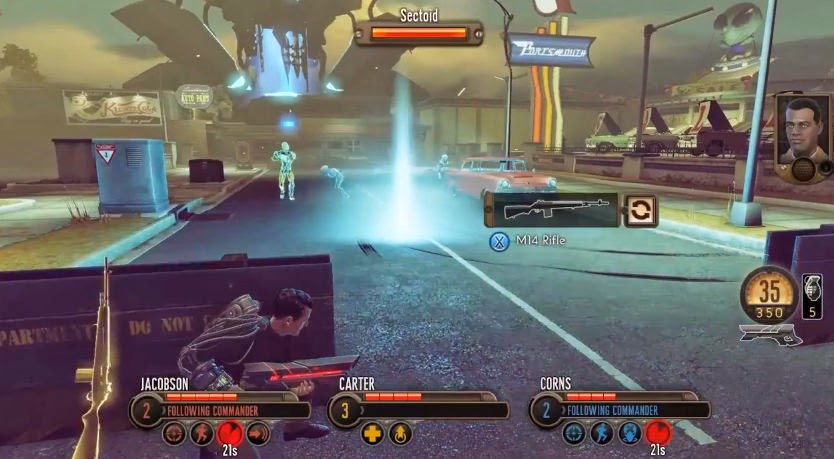
    The Bureau XCOM Declassified Game

    The Bureau is a third-person shooter with an emphasis on squad-based tactics. The player controls the agent William Carter and commands two additional agents in each mission. Carter has his own unique abilities, but other agents are divided into the Commando, Engineer, Support, and Recon classes. By entering "Battle Focus Mode", which slows time significantly, the player can order their agents to move to strategic positions and activate class-specific abilities.
    Agents have customizable outfits, weapons, equipment, and abilities. As in XCOM: Enemy Unknown, if Carter is unable to revive agents who have taken too much damage, they will die (variable difficulty levels also determine whether or not it is possible for downed agents to become battle-ready when revived, or if replacement agents will appear during a mission). The agents who die will be dead for the rest of the game.

    System Requirements!
    Windows Xp,7,Vista,8
    Ram: 2 GB
    Video Memory: 512 MB
    CPU:Intel Core 2 Due @ 2.4 GHz
    Hard Space: 12 MB Free
    Direct X:9.0c
    Sound Card:Yes

    screenshots
    The Bureau XCOM Declassified Game

    The Bureau XCOM Declassified Game

    The Bureau XCOM Declassified Game

     To Download just click on download and enjoy.

    Sunday, 14 December 2014

    VMware Player 7.0.0 Download

    VMware Player 7.0.0 DownloadA virtual machine is a computer defined in software. It's like running a PC on your PC.
    This free desktop virtualization software application makes it easy to operate any virtual machine created by VMware Workstation, VMware Fusion, VMware Server or VMware ESX, as well as Microsoft Virtual Server virtual machines or Microsoft Virtual PC virtual machines.
    • Run multiple operating systems simultaneously on a single PC
    • Experience the benefits of preconfigured products without any installation or configuration hassles
    • Share data between host computer and virtual machine
    • Run 32- and 64-bit virtual machines
    • Leverage 2-way Virtual SMP
    • Use 3rd-party virtual machines and images
    • Share data between host computer and virtual machine
    • Broad host and guest operating system support
    • Support for USB 2.0 devices
    • Get appliance info at start-up
    • Gain easy access to virtual machines via intuitive home page interface